

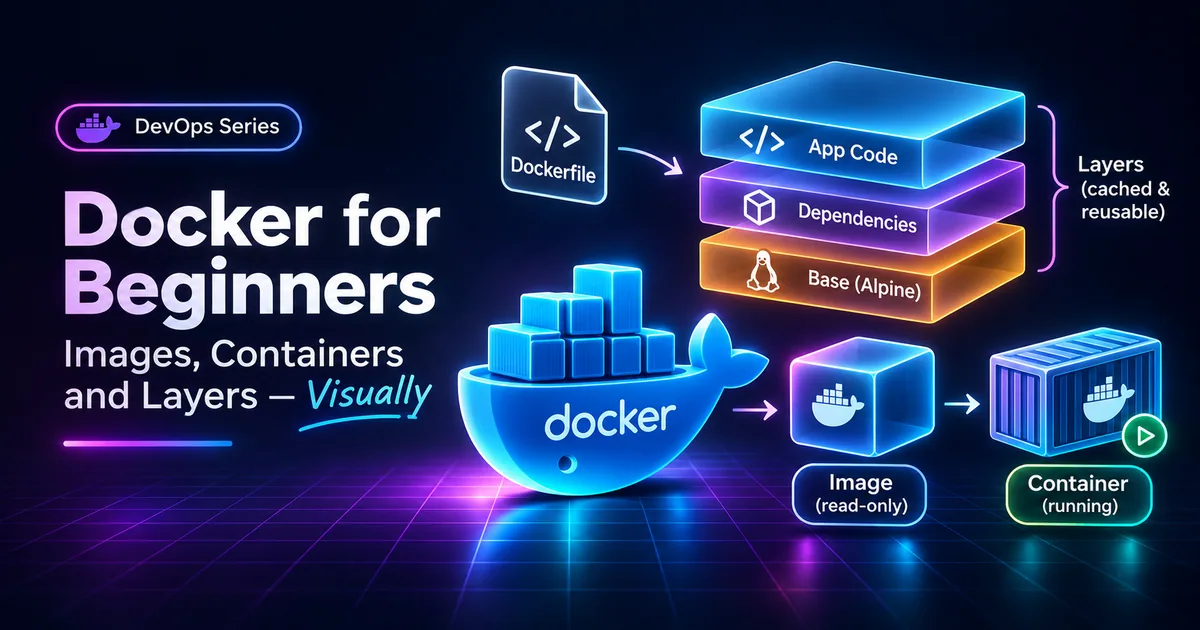
“It works on my machine.” Docker exists so nobody has to say that again. In ten minutes you'll know what images, containers and layers really are — and you'll have a Dockerfile that rebuilds in seconds.
The problem: “works on my machine”
Your app needs Node 22, a specific OpenSSL, some environment variables and a dozen packages. The server has Node 18. Your teammate is on Windows. Docker solves this by shipping the app together with its environment, sealed in a box that runs the same everywhere.
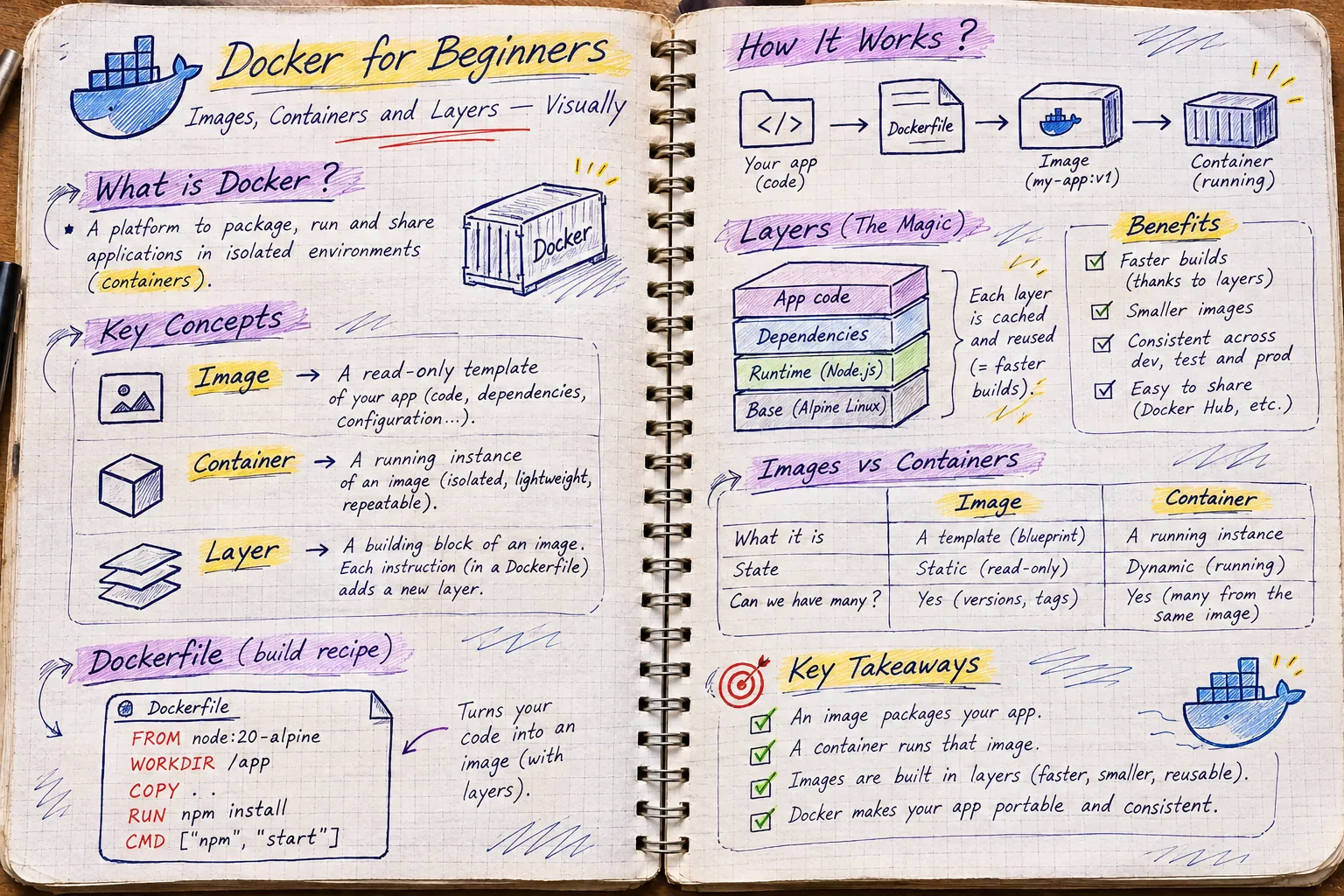
Image vs container
- Dockerfile — the recipe: a text file of instructions.
- Image — the baked result: a read-only, versioned snapshot of the filesystem + start command.
- Container — a running instance of an image, isolated from the host and from other containers.
An image is to a container what a class is to an object.
Layers & the build cache (the part everyone gets wrong)
Every instruction in a Dockerfile creates a layer. Docker caches each layer and reuses it if nothing it depends on changed. But here's the catch: once one layer is rebuilt, every layer after it is rebuilt too.
Try it. Pick Naive Dockerfile + Edited a source file and build. Then switch to Cache-friendly and build again. After that, run a few containers from the same image.
Dockerfile
- 1FROM node:22-alpine
- 2WORKDIR /app
- 3COPY . .
- 4RUN npm ci
- 5RUN npm run build
- 6CMD ["node", "server.js"]
0.0s / 60.5s
Image layers (read-only, stacked)
Quick check
You change one line in src/app.js. With a cache-friendly Dockerfile, which step reruns?
Tutorial: Dockerize a Node.js (or Next.js) app
Step 1 — Install Docker
Install Docker Desktop on Windows/macOS (or Docker Engine on Linux), then check: docker --version.
Step 2 — Add a .dockerignore
node_modules
.git
.next
.env*
npm-debug.log
This keeps images small and — importantly — keeps secrets out of them.
Step 3 — Write a cache-friendly, multi-stage Dockerfile
# ---- build stage ----
FROM node:22-alpine AS build
WORKDIR /app
COPY package*.json ./
RUN npm ci                 # cached until dependencies change
COPY . .
RUN npm run build

# ---- runtime stage: only what we need to run ----
FROM node:22-alpine
WORKDIR /app
ENV NODE_ENV=production
COPY --from=build /app/package*.json ./
RUN npm ci --omit=dev
COPY --from=build /app/dist ./dist
USER node                  # don't run as root
EXPOSE 3000
CMD ["node", "dist/server.js"]Step 4 — Build and run
docker build -t my-app .
docker run -p 3000:3000 --env-file .env my-app
# open http://localhost:3000
-p 3000:3000 maps a port on your machine to the container. --env-file passes secrets at runtime instead of baking them into the image.
Multiple services with Docker Compose
Real apps need a database too. Compose starts everything with one command:
services:
  web:
    build: .
    ports: ["3000:3000"]
    environment:
      DATABASE_URL: postgres://app:secret@db:5432/app
    depends_on: [db]
  db:
    image: postgres:17-alpine
    environment:
      POSTGRES_USER: app
      POSTGRES_PASSWORD: secret
    volumes: ["pgdata:/var/lib/postgresql/data"]
volumes:
  pgdata:
Run docker compose up. Services reach each other by name (db), and the volume keeps your data when containers are recreated.
Cheat sheet
docker build -t name .— build an imagedocker run -d -p 8080:3000 name— run in the backgrounddocker ps/docker ps -a— running / all containersdocker logs -f <id>— follow logsdocker exec -it <id> sh— open a shell insidedocker stop <id>·docker rm <id>— stop · removedocker system prune— clean up unused data (careful!)
Shipping a container to production? Your rendering strategy still matters — see CSR vs SSR vs SSG vs ISR.